SEO
How to Change a Framer CMS Slug Without Losing SEO
A step-by-step guide to updating an article URL, adding a redirect, and checking the change in Framer and Google Search Console.
By
Alex Ran
·
8
min read
·
Last updated:
Key takeaways
Changing a Framer CMS slug creates a new URL, so the old address needs a redirect.
A cleaner slug is useful, but it is not always worth changing a page that already has strong traffic, rankings, or backlinks.
Keep the same CMS item when updating an existing article rather than creating a duplicate.
Links connected directly to a Framer page or CMS item should follow the new slug automatically. Full URLs added manually still need to be reviewed.
Test the redirect on the live domain after publishing, not only inside Framer.
Keep the redirect in place permanently and monitor the new URL in Google Search Console.
This article shows how to do a single slug change. For larger redesigns or platform migrations, manage redirects through a documented URL map rather than handling them individually.
Updating an old Framer article is straightforward until you decide to change its URL.
A shorter, clearer slug can make a page easier to understand and maintain. But changing the slug without setting up a redirect can break existing links and leave search engines pointing to a page that no longer exists.
We recently updated a Framer Analytics article originally published in September 2025. The article had been substantially revised for Framer 3.0, and its original title and URL no longer reflected the content accurately.
We changed the URL from:
/blog/a-deep-dive-into-framer-s-advanced-analytics-funnels-a-b-testing-click-insights-for-designers
to:
/blog/framer-analytics
This guide shows the exact process we followed in Framer, including the CMS update, redirect setup, internal link checks, publishing, and Google Search Console review.
Should You Change the Slug?
A long or outdated URL does not automatically need to be changed.
Before updating a slug, check whether the existing page already has:
meaningful organic traffic
useful keyword rankings
external backlinks
links from past campaigns
internal links across your website
If the page already performs well, keeping the existing URL may be the lower-risk choice. You can still update the title, content, screenshots, and metadata without changing the slug.
A slug change is more reasonable when:
the current URL is unusually long or unclear
the article topic has changed substantially
the URL includes an outdated product name or year
the page is being consolidated with another article
the current URL has little established search or backlink value
In our case, the original URL was long, launch-specific, and aimed at designers. The revised article had a broader focus on Framer Analytics for B2B marketing teams, so a shorter evergreen slug made more sense.
Our Before-and-After Setup
Field | Previous version | Updated version |
|---|---|---|
Article title | A Deep Dive into Framer’s Advanced Analytics: Funnels, A/B Testing & Click Insights for Designers | Framer Analytics in 2026: Funnels, A/B Testing, Click Tracking, and AI Insights |
Slug |
|
|
SEO title | Based on the original article title | Framer Analytics Guide 2026: Funnels, A/B Tests & AI |
URL |
|
|
Original publication date | September 24, 2025 | Preserved |
Updated date | — | July 2026 |
How to Change a Framer CMS Slug Safely
1. Update the CMS article fields
Open your Framer project and go to:
CMS → Blog or Articles → Open the article
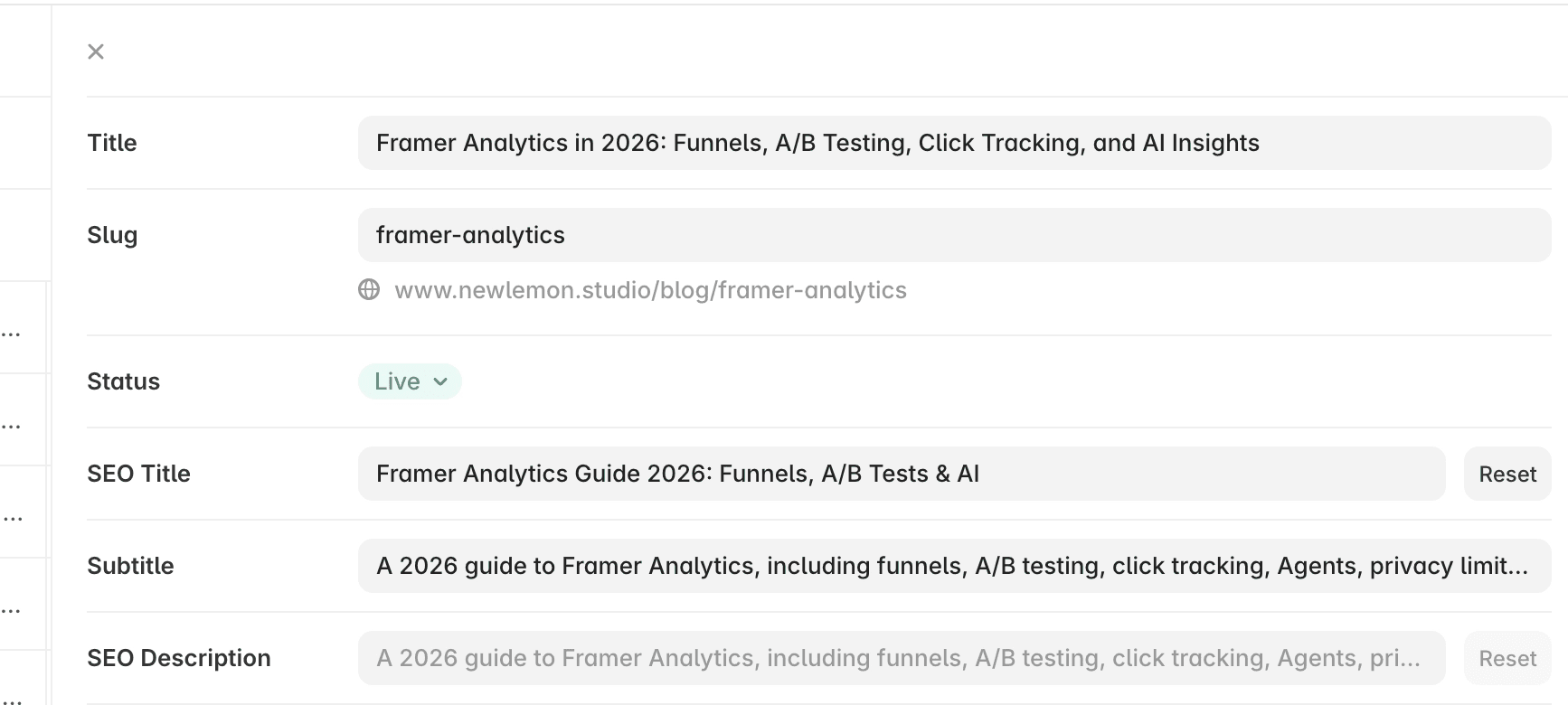
Update the fields used by the article.
For our example, we changed:
Old slug
a-deep-dive-into-framer-s-advanced-analytics-funnels-a-b-testing-click-insights-for-designers
to new slug
framer-analytics
Your final article URL will depend on the path used by the CMS collection. In our case, the result was:
/blog/framer-analytics
2. Check the CMS page metadata
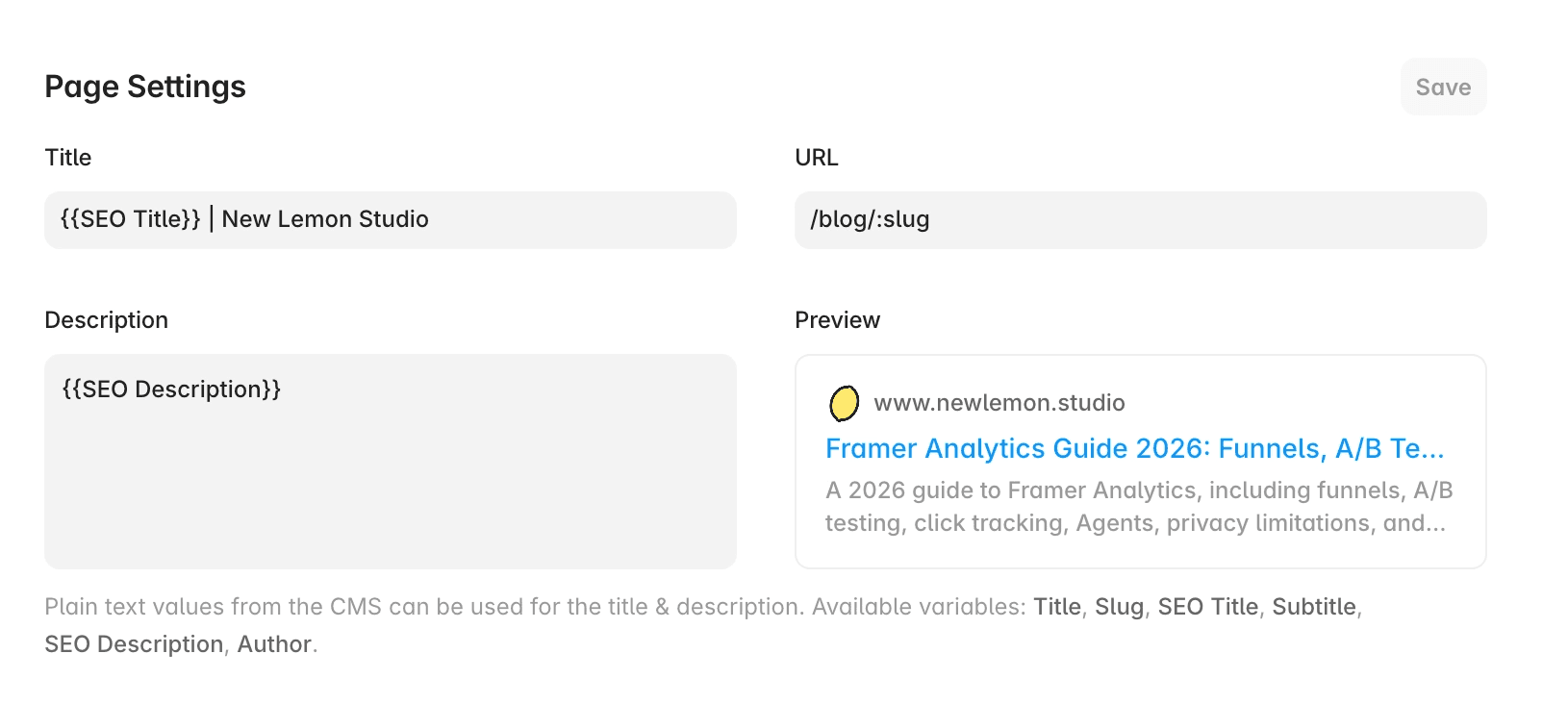
Next, confirm that the blog template is connected to the correct CMS fields.
Open:
Pages → Blog CMS detail page → Settings (or option + 5) → SEO & Social
Check that the title, description, and social image are connected dynamically.
A typical setup might use:
Title: SEO Title
Description: SEO Description
Social image: CMS social image field
The visible heading inside the article can continue using the regular CMS title field.
This lets you use a more editorial H1 on the page while keeping the search title slightly shorter.
For example:
Visible H1
Framer Analytics in 2026: Funnels, A/B Testing, Click Tracking, and AI Insights
SEO title
Framer Analytics Guide 2026: Funnels, A/B Tests & AI
3. Add a redirect from the old URL
Changing the CMS slug creates a new URL. The old address will no longer point to the article unless you add a redirect.
In Framer, go to:
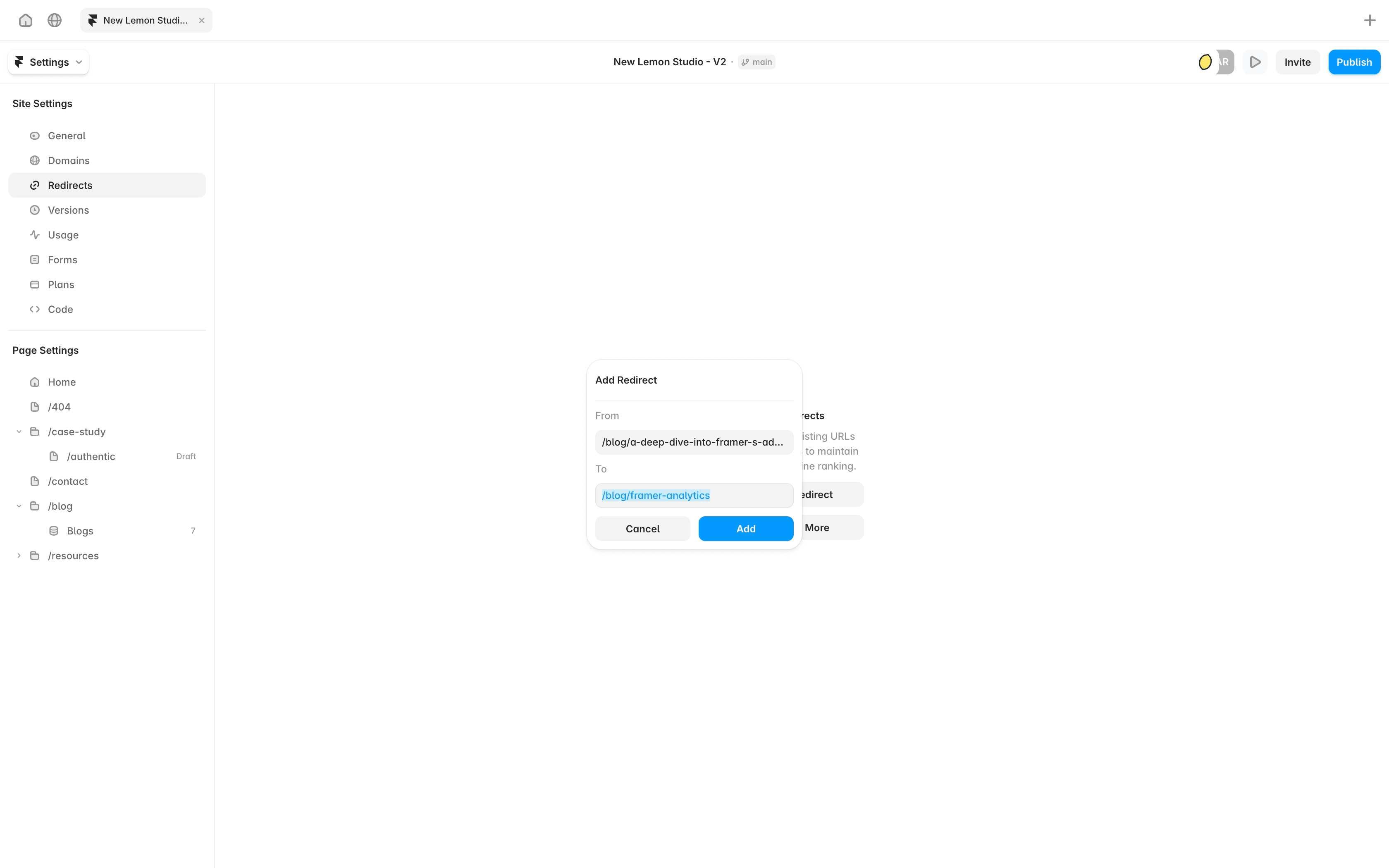
Settings → Redirects → Add Redirect
Add the old and new paths.
From
/blog/a-deep-dive-into-framer-s-advanced-analytics-funnels-a-b-testing-click-insights-for-designers
To
/blog/framer-analytics
Use the full path beginning with /, but do not include the domain.
Then select Add.
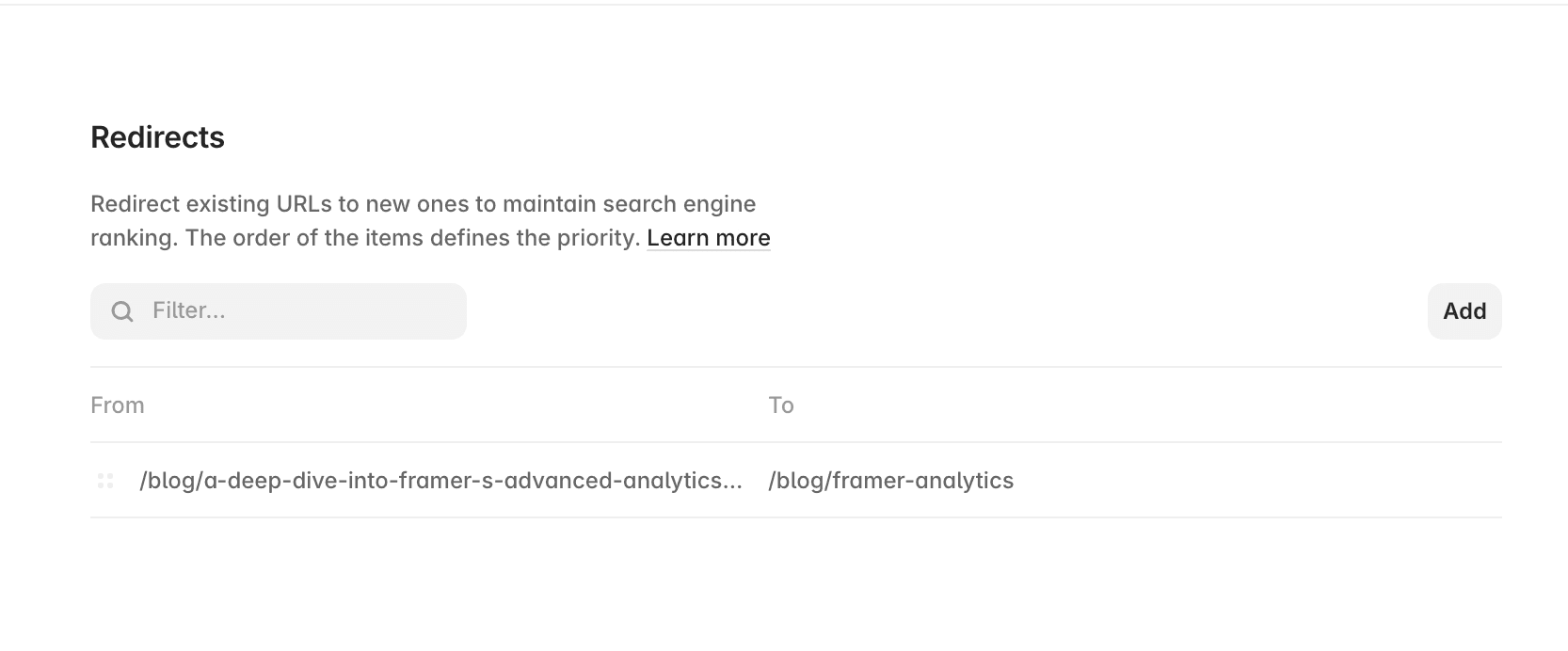
After adding it, the redirect should appear in the redirects table.
A few points to watch:
Redirect the old article to the closest equivalent new page.
Do not redirect unrelated pages to the homepage.
Avoid creating chains such as old URL → temporary URL → final URL.
Keep the redirect in place permanently.
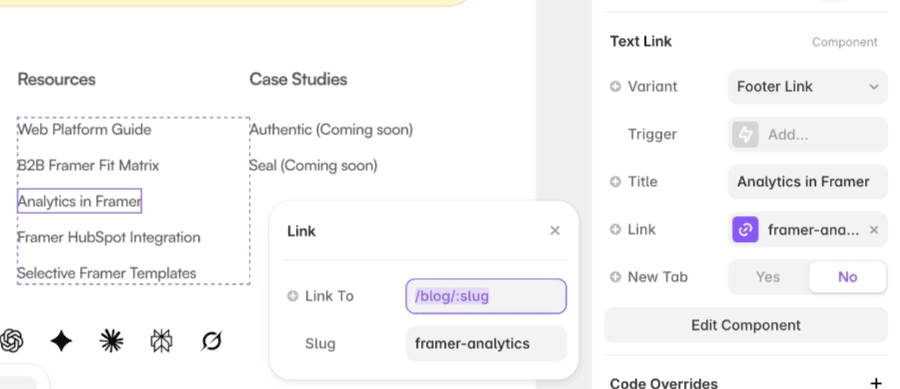
4. Check internal links
Links created by selecting a page or CMS item directly in Framer should update automatically when the slug changes.
You mainly need to check links added as full URLs, such as:
manually pasted links
links inside rich text
downloadable guides
email sequences
Notion resources
LinkedIn or partner posts
The redirect will keep old URLs working, but links you control should point directly to the new page where practical.
5. Publish and test both URLs
Once the CMS fields and redirect are ready, publish the Framer site.
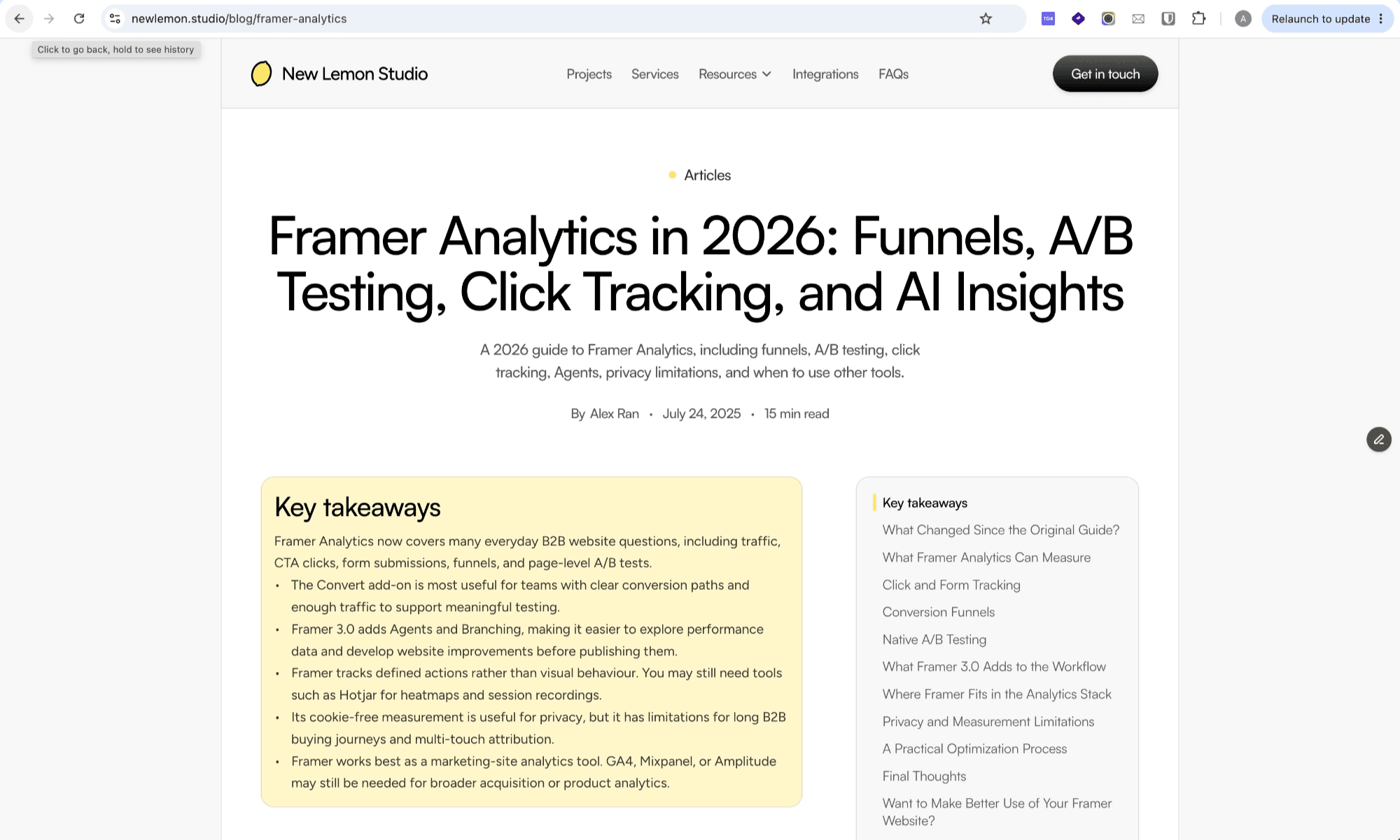
Do not assume the redirect works simply because it appears in Site Settings. Test it on the live domain.
First, open the old URL:
https://www.newlemon.studio/blog/a-deep-dive-into-framer-s-advanced-analytics-funnels-a-b-testing-click-insights-for-designers
It should automatically load:
https://www.newlemon.studio/blog/framer-analytics
Then open the new page directly and check:
the article loads normally
the H1 is correct
the browser title is correct
the meta description is updated
the social preview is correct
images and internal links work
the page is not marked as noindex
You should also confirm that the new article URL appears in your Framer sitemap:
https://www.newlemon.studio/sitemap.xml
6. Request indexing in Google Search Console
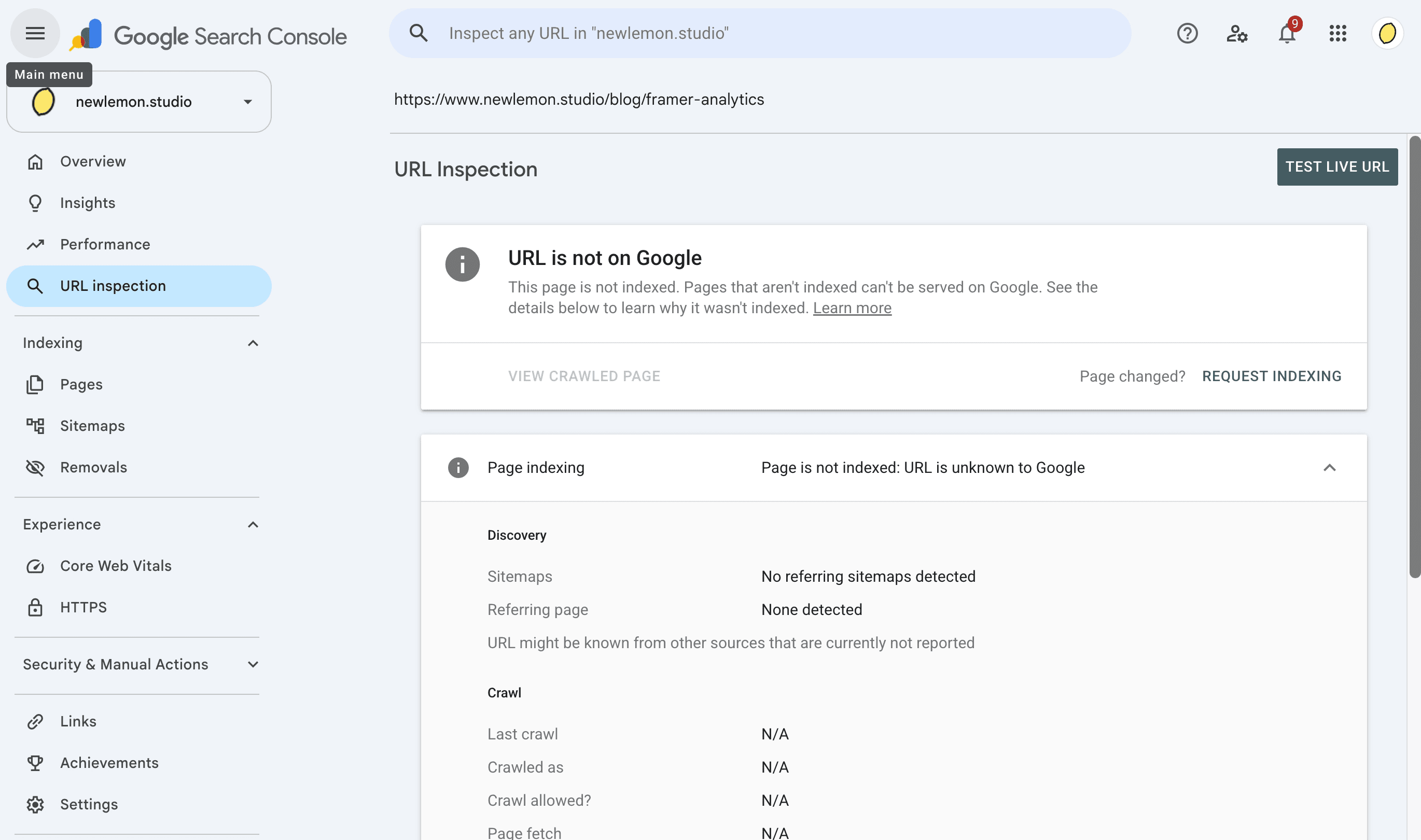
After publishing, open Google Search Console and inspect the new URL.
Paste:
https://www.newlemon.studio/blog/framer-analytics
into the URL inspection field.
Then:
Confirm Google can access the page.
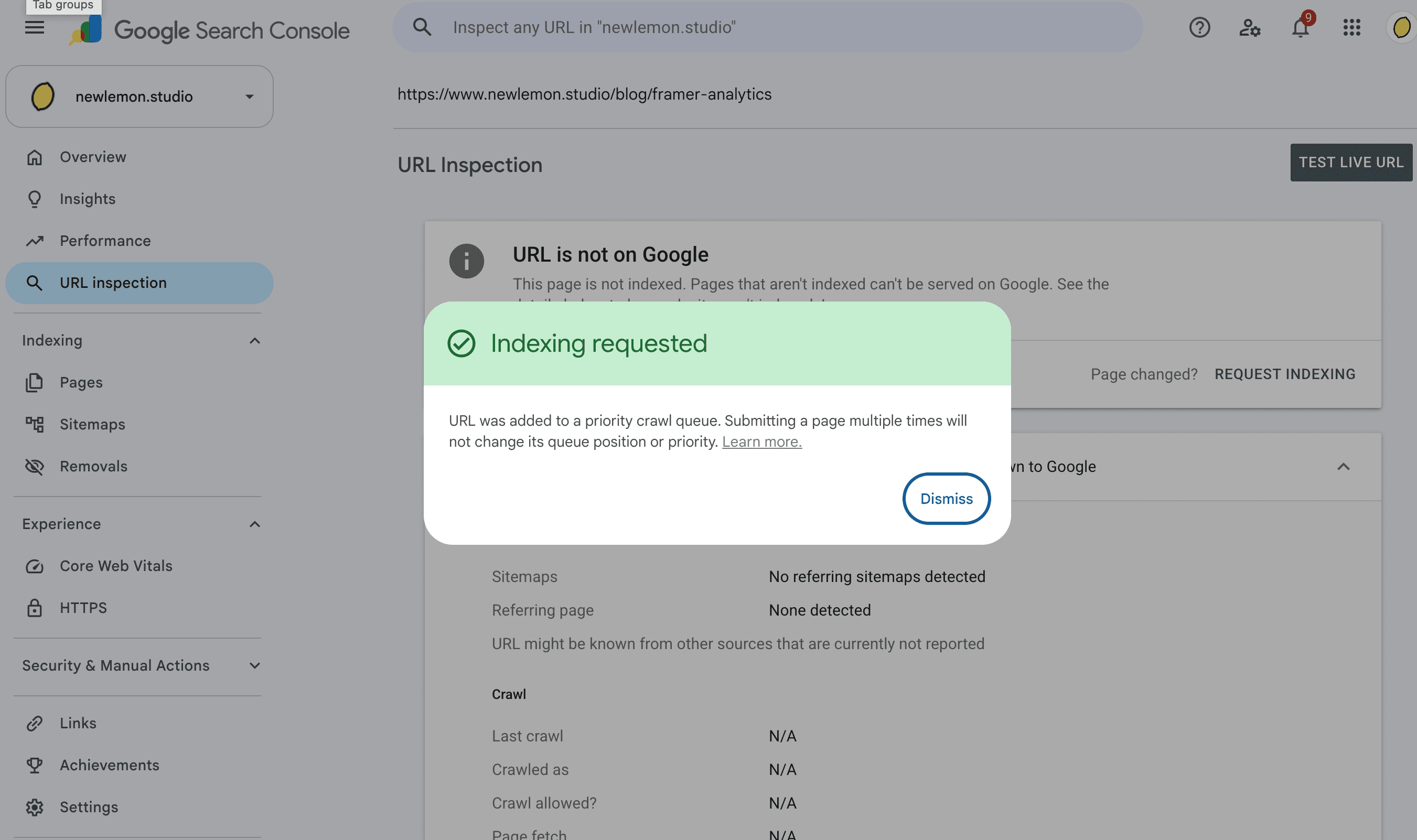
Select Request indexing.
Inspect the old URL after Google has recrawled it.
Confirm that the old URL is recognized as a redirect.
Monitor impressions and clicks for both URLs over the following weeks.
You do not need to remove the old URL manually from Google. The redirect tells search engines that the content has moved.
It may take time for the new URL to replace the old one in search results.
Post-Publish Checklist
After changing a Framer CMS slug, confirm that:
the old URL redirects directly to the new article
the new URL loads successfully
the CMS item uses the correct slug
the H1 and SEO title are correct (Tip: You can use this Chrome extension to check SEO title and description quickly)
the meta description is updated
internal links point to the new URL
the old URL does not return a 404
Google Search Console can inspect the new page
Common Mistakes to Avoid
Changing the slug without adding a redirect
This leaves old links pointing to a page that no longer exists.
Deleting the old CMS item and creating a new one
For a substantial update to the same article, it is usually cleaner to update the existing CMS record. Creating a new item can introduce duplicate content, broken links, and unnecessary migration work.
Redirecting the old article to the homepage
The redirect should lead to the closest equivalent page. In this case, the old analytics article should redirect to the updated analytics article.
Forgetting manually added links
CMS-generated links may update automatically, while buttons, cards, and in-text links added by hand may not.
Updating the H1 but not the SEO fields
The article heading, browser title, meta description, and social preview may use different CMS fields. Review all of them.
Testing only inside Framer
Preview mode does not confirm that the redirect works on the live domain. Publish the site and test both URLs in a browser.
Removing the redirect later
Old links and search results may continue to appear for a long time. Keep the redirect permanently unless the URL structure changes again.
When a Slug Update Becomes a Larger Migration
Changing one article URL is a manageable maintenance task.
Changing dozens or hundreds of URLs during a redesign or platform migration needs a more structured process.
A larger migration may involve:
a full page inventory
CMS exports and imports
URL mapping
redirect planning
internal link updates
metadata migration
form and integration testing
sitemap checks
post-launch monitoring
For those projects, track every old and new URL in a shared migration document rather than adding redirects one at a time without a record. See our Webflow to Framer migration guide for an example to URL mapping, redirects, CMS, and launch QA.
For larger redesigns or platform migrations, our Website to Framer Migration Checklist covers the wider process across planning, CMS, SEO, integrations, launch QA, and handoff. Get the migration checklist here.
Need Help Managing a Framer Website After Launch?
Small updates such as changing a CMS slug can affect redirects, internal links, metadata, and search performance.
At New Lemon Studio, we help B2B marketing teams build and maintain Framer websites that stay manageable as content, campaigns, and positioning evolve.
Planning a larger update or migration? Tell us what is changing, and we’ll help you work through a sensible approach.
FAQs for SEO-safe CMS slug change in Framer
Does Framer automatically redirect an old CMS slug?
No. Changing the slug creates a new URL, but you still need to add a redirect from the old path in Site Settings → Redirects.
Will changing a Framer slug affect SEO?
It can if the old URL is removed without a redirect or important links are missed.
A direct redirect from the old page to the updated page helps visitors and search engines find the new URL.
Should I change a long or outdated slug?
Not automatically.
First check whether the existing page has organic traffic, useful rankings, backlinks, or important campaign links. An imperfect URL may be safer to keep when it already performs well.
Should I create a new CMS item for the updated article?
Usually not.
When the page is still covering the same main topic, update the existing CMS item. This preserves the page history and avoids unnecessary duplicate content.
Do internal links update automatically in Framer?
Links created by selecting a Framer page or CMS item should follow the updated slug automatically.
Links entered as full URLs, including links inside rich text, emails, PDFs, Notion pages, or partner websites, need to be checked separately.
How do I add the redirect in Framer?
Go to:
Site Settings → Redirects → Add Redirect
Enter the old path in From and the new path in To. Use paths beginning with / rather than the full domain.
Should I redirect the old URL to the homepage?
No, unless the homepage is genuinely the closest replacement.
The old URL should point to the most relevant equivalent page. For an updated article, that is usually the new article URL.
How can I test whether the redirect works?
Publish the site, then open the old URL in a browser.
It should forward directly to the new URL without showing a 404 page or passing through another redirect.
Do I need to remove the old URL from Google?
No. The redirect tells Google that the page has moved.
Inspect the new URL in Google Search Console, request indexing, and check the old URL later to confirm that Google recognizes the redirect.
How long should the redirect stay in place?
Keep it permanently.
Old links, bookmarks, campaign URLs, and search results may continue to send visitors to the previous address long after the update.
What if I need to change many URLs?
Use a migration plan with:
an old-to-new URL map
redirect status
page owner
launch status
post-launch checks
For larger projects, a shared migration checklist is safer than adding redirects one by one without documentation.
More insights


