Migration
WordPress to Framer Migration: A Step-by-Step Guide for B2B Websites
A practical guide for B2B marketing teams moving from WordPress to Framer without losing content, integrations, or SEO value.
By
Alex Ran
·
7
min read
·
Last updated:
Key takeaways
A WordPress to Framer migration is usually a rebuild, not a one-click transfer. Static pages, components, forms, and integrations normally need to be recreated.
Use the migration to clean up the website. Review what should be kept, redesigned, merged, or removed before moving content.
Map URLs and redirects before launch. Preserving important URLs and redirecting changed ones helps reduce SEO risk.
Build the Framer structure before importing content. Set up components, styles, CMS collections, breakpoints, and page templates first.
Test integrations end to end. Forms should be checked all the way through to HubSpot, analytics, attribution, and automation.
Keep the old WordPress site available temporarily while redirects, search performance, analytics, and migrated content are verified.
A practical guide for B2B marketing teams moving from WordPress to Framer without losing content, integrations, or SEO value.
A WordPress to Framer migration usually means rebuilding the website in Framer, then moving the content, URLs, integrations, and SEO setup across carefully.
For B2B teams, this is also a good chance to clean up an old website: remove outdated pages, simplify the CMS, reduce plugin dependency, and build a system that marketing can manage more easily after launch.
If you are still deciding on the platform, start with our guide to whether Framer is the right platform for your B2B website.
Quick glossary
Term | Meaning |
|---|---|
CMS | Structured content such as blogs, case studies, resources, or jobs |
Slug | The URL path after your domain, such as |
Redirect | Sends an old URL to its new location |
Sitemap | A list of website URLs for search engines |
Staging | A test version of the website before launch |
Why do B2B teams move from WordPress to Framer?
WordPress can support complex B2B websites, but running it often involves several moving parts: hosting, themes, plugins, updates, security, backups, and developer support.
Framer brings the CMS, design system, hosting, staging, responsive layouts, and publishing into one platform.
For marketing teams, that can mean fewer dependencies and easier day-to-day website updates.
A migration makes the most sense alongside a redesign, rebrand, or larger website cleanup. Rebuilding an outdated WordPress site exactly as it is usually wastes the opportunity.
How do you migrate from WordPress to Framer?
1. Audit and back up the WordPress site
Start with a complete record of the existing website.
Check:
pages and URLs
posts and custom post types
categories and CMS fields
forms and integrations
analytics and tracking scripts
plugins affecting the front end
media and downloadable files
SEO titles and descriptions
WordPress's export tool can export pages, posts, custom post types, categories, tags, and other content.
Keep a full website backup as well. WordPress stores website files and database content separately.
2. Decide what stays and what changes
Review each page before rebuilding it.
A simple framework:
Keep: still useful and performs a clear role.
Redesign: useful content, but the layout or messaging needs work.
Merge: several similar pages can become one stronger page.
Remove: outdated content with little traffic, backlink value, or business use.
Also review WordPress plugins. Some functionality may no longer be needed, while other features may need a different implementation in Framer.
3. Map your sitemap and URLs
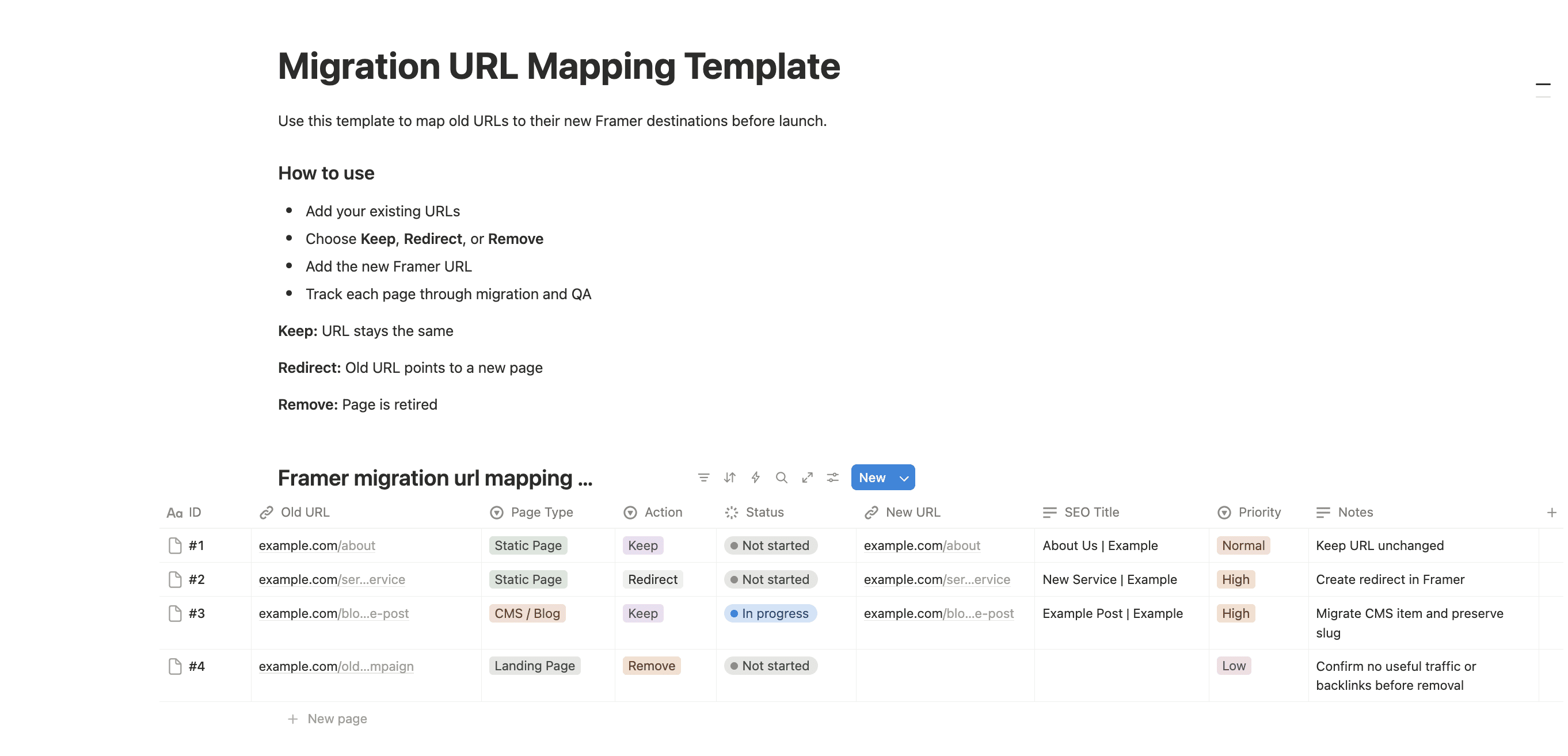
Create an old-to-new URL map early.
A simple spreadsheet can include:
Old URL | New URL | Keep / Redirect / Remove | SEO title | Status
Keep important URLs unchanged where practical. When a URL changes, plan its redirect before launch.
WordPress refers to permanent page URLs as permalinks.
To make this easier, use our free Migration URL Mapping Template to track URLs, redirects, SEO titles, and migration status.
4. Set up the Framer project
Build the foundation before importing content.
We normally set up:
sitemap and page structure
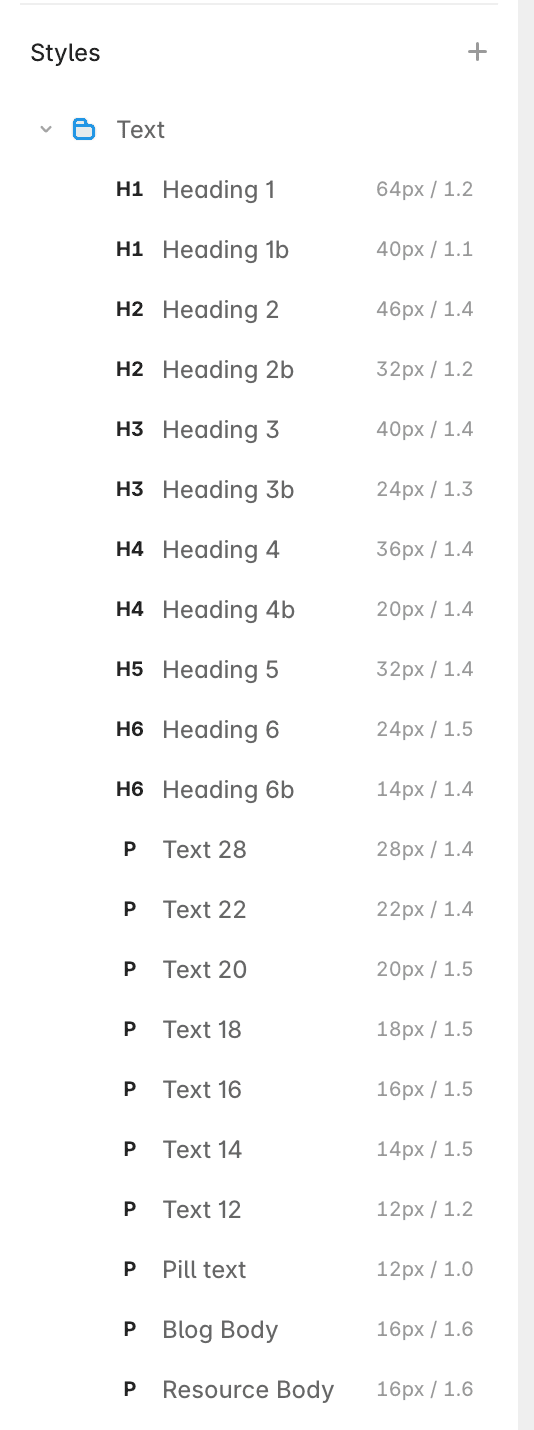
typography, colours, and spacing
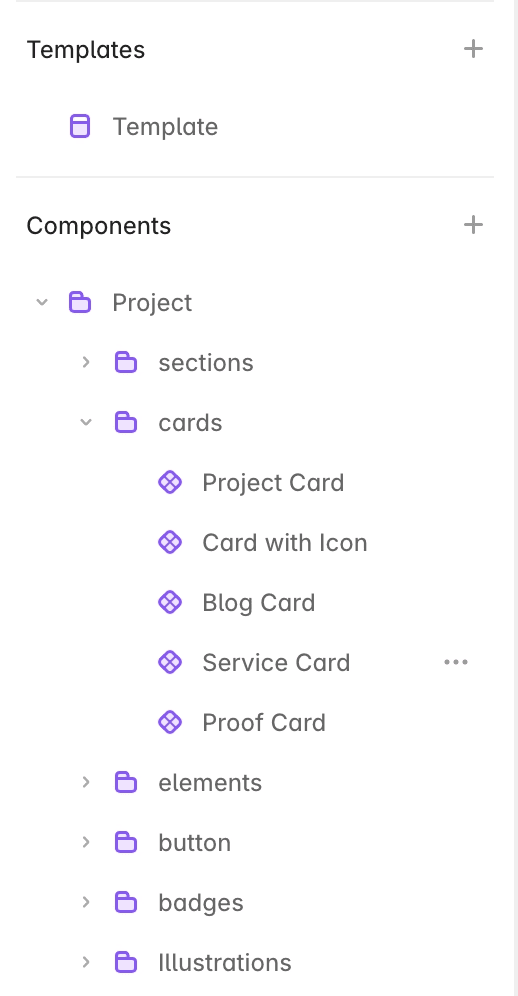
reusable components
desktop, tablet, and mobile layouts
CMS collections and fields
navigation and footer
SEO metadata structure
Framer supports structured CMS collections, references, filters, and reusable CMS templates. Content can also be imported from CSV with Framer Agents.
5. Move the content & rebuild the pages
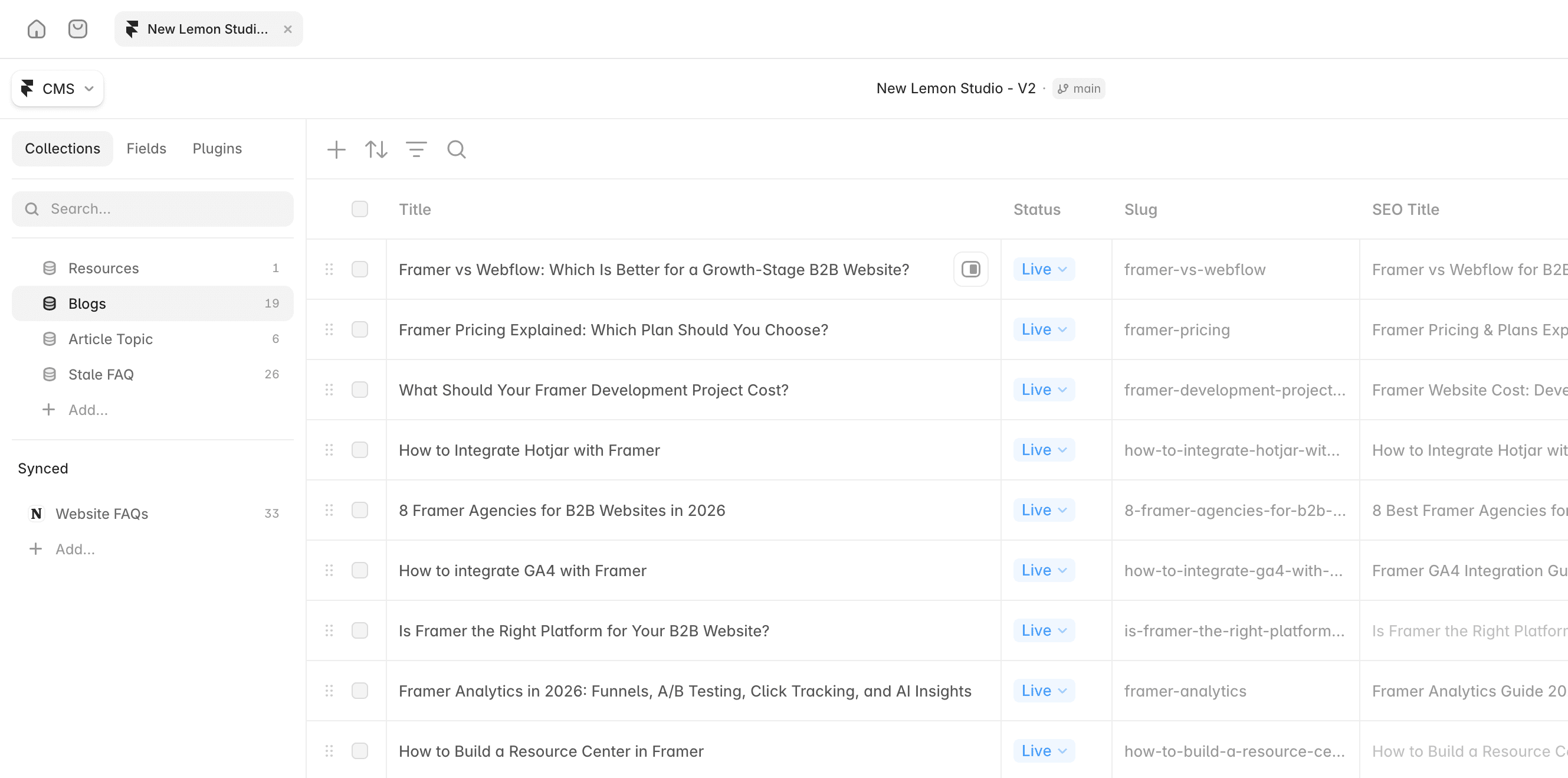
There are two parts to be moved. One is static pages, they usually need to be rebuilt in Framer; the second is CMS content. CMS content can be exported from WordPress, cleaned up, mapped to the new Framer fields, and imported in batches.
Check:
slugs
rich-text formatting
dates
authors
categories
images
alt text
internal links
SEO metadata
For larger sites, scripts or agents can help convert WordPress data into cleaner CSV or JSON before importing it into Framer.
6. Rebuild forms and integrations
List every system connected to WordPress.
Typical B2B integrations include:
HubSpot
GA4
Google Tag Manager
Hotjar
Calendly
Greenhouse
chat tools
automation platforms
Framer supports embeds, custom code, plugins, and native integrations.
We cover common setups in our guides to HubSpot with Framer and GA4 with Framer.
Test the full workflow, not only the form itself. Check that leads reach the CRM with the right fields, attribution, and automation.
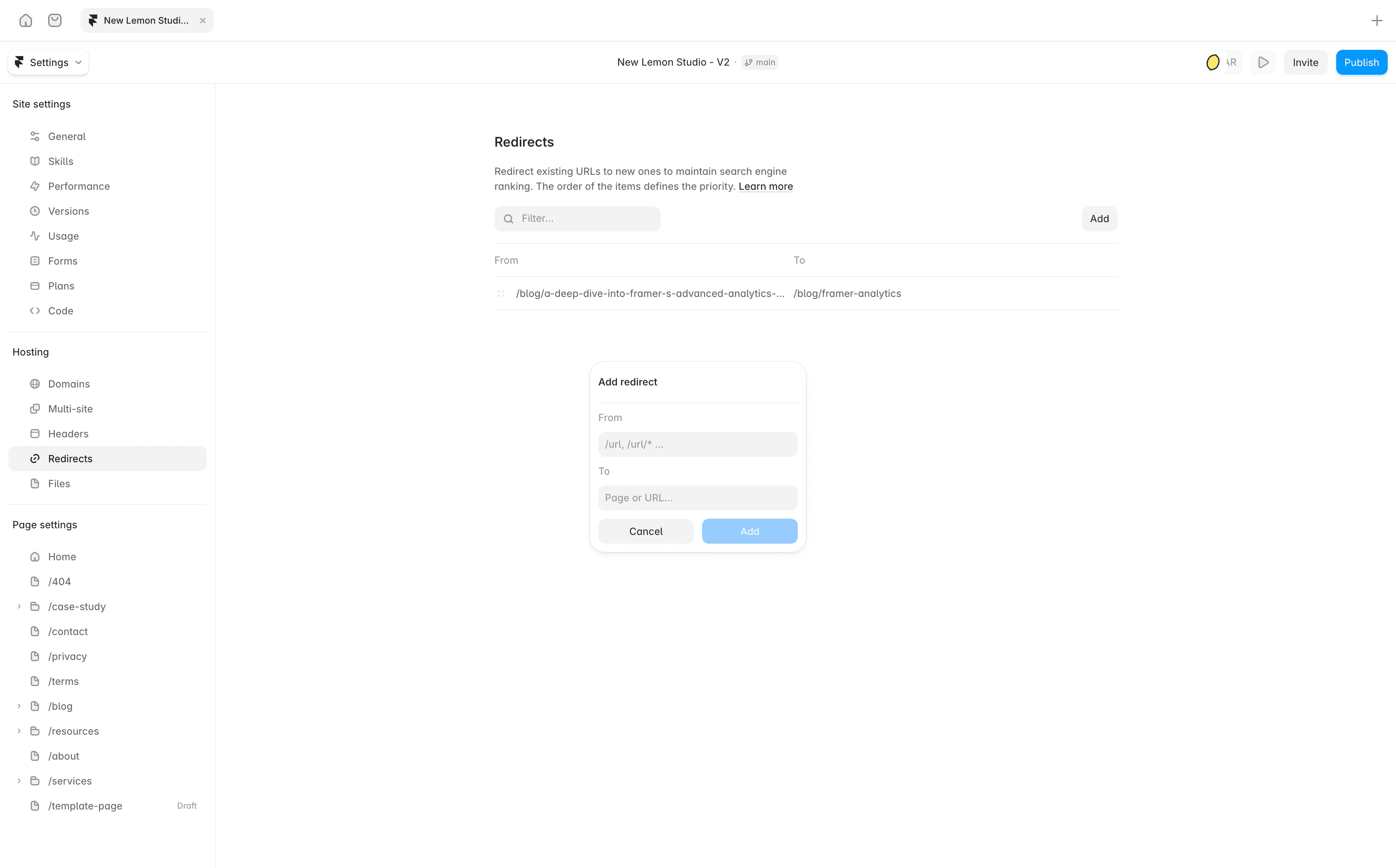
7. Set up redirects and SEO
SEO deserves its own migration checklist.
Preserve important URLs where possible. When URLs change, redirect each old page to the closest relevant replacement.
Also migrate:
page titles
meta descriptions
heading structure
image alt text
internal links
structured data
canonical settings
Framer automatically generates a sitemap and provides controls for metadata, redirects, canonicals, and robots.txt. See Framer's SEO documentation.
Our guide to changing a Framer CMS slug without losing SEO covers the same redirect principle in more detail.
What should you check before launch?
Run a full QA pass before switching the domain.
Check:
desktop, tablet, and mobile layouts
navigation and internal links
CMS content
forms and CRM submissions
analytics and tracking
redirects
metadata
cookie consent
downloads
accessibility basics
404 page
Use staging to review the website before production.
After launch, submit the new sitemap in Google Search Console and monitor indexing, traffic, form submissions, and 404 errors.
What makes a WordPress to Framer migration smoother?
A few practices make a big difference.
Clean up before importing. Do not move old pages and plugins simply because they exist.
Build the CMS first. Set the structure before moving hundreds or thousands of content items.
Plan redirects early. Waiting until launch day creates unnecessary SEO risk.
Test integrations end to end. A form can look correct while sending incomplete data to HubSpot.
Keep the old WordPress site available temporarily. Keep a backup and access to the old content until the new site has been fully checked.
The same principles apply to other migrations. See our Webflow to Framer migration guide for the equivalent process from Webflow.
Planning a WordPress to Framer migration?
For a B2B marketing team, a good migration should leave you with more than the same website on a different platform.
It should give you a cleaner CMS, reusable components, fewer dependencies, reliable integrations, and a website the internal team can manage more confidently.
At New Lemon Studio, we help B2B teams plan and build Framer migrations, including CMS structure, integrations, redirects, QA, documentation, and team handoff.
For budgeting, see our guide to Framer development project costs and our breakdown of Framer plans and pricing. If you are planning a WordPress to Framer migration and want a second opinion on scope, timing, or approach, book a free discovery call with us.
FAQs
Can WordPress be imported directly into Framer?
There is no complete one-click migration. CMS content can be exported and imported, but page layouts, components, forms, integrations, and styling usually need to be rebuilt.
Will moving from WordPress to Framer hurt SEO?
It can if important URLs, metadata, internal links, or redirects are lost. A planned migration that preserves strong URLs and redirects changed ones can reduce that risk significantly.
How long does a WordPress to Framer migration take?
It depends on the number of unique page layouts, CMS content, integrations, redesign work, and review rounds. A small B2B website may take a few weeks; larger migrations with substantial CMS content and integrations take longer.
Should we migrate during a redesign?
Usually, yes. A planned redesign gives you a good opportunity to simplify the sitemap, CMS, components, and integrations at the same time.
Should we shut down WordPress immediately after launch?
No. Keep a full backup and temporary access to the old site while you verify redirects, content, analytics, integrations, and search performance.
More insights


